


AirPlay - Cast Tv
4.2127.00 Reviews
App Specs
- Version
- 2.6.1
- Updated On
- License
- Free
- Downloads
- 100,000+
- Developer
- FastSoft
- Categories
- Libraries & Demo
- Platform
- Android
Screenshots
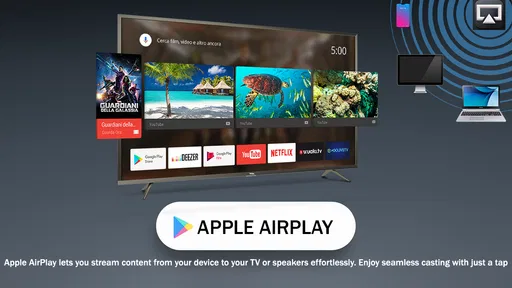
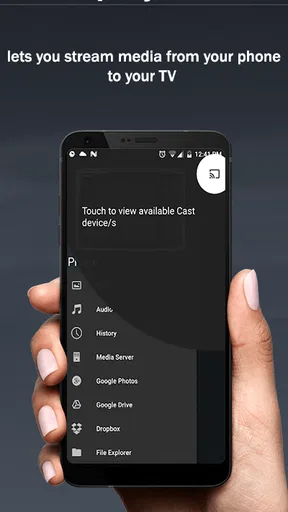
 Analysis by AppCompare
For a first-time user, the promise of casting a phone to a television sounds simple, but the actual experience depends on the devices in the room and how you want to watch. AirPlay - Cast TV is a free Android app from FastSoft in the Libraries & Demo category, aimed at sending phone content to a TV. I’d approach it as a casting helper rather than a replacement for every television app: it is most useful when you already have something on your phone that you want to see on a larger screen.
The app is rated for Everyone and has an average rating of 4.0 from 321 ratings, with 50K+ installs. Those figures suggest that people are finding a practical use for it, but they do not guarantee that it will work with every television. The key question before installing is whether your TV and phone can communicate through a casting method they both support. A little preparation makes that first attempt less frustrating.
What to expect before you start
Screen casting is not quite the same as opening a streaming service on a television. With a TV’s own app, the television fetches the show directly; with phone-to-TV casting, the phone helps start or supply what appears on the larger screen. That difference matters if you plan to watch a long film, share a short clip, or show a slideshow. The phone may remain part of the viewing setup, so keep it nearby and consider whether you want to keep using it while the TV is displaying content.
I would also set expectations around compatibility. “AirPlay” is a familiar name for Apple’s wireless streaming technology, while Android phones and televisions can use different casting systems. A casting app can only help when the devices have a route to connect. Before relying on it for a planned movie night or presentation, check that your television offers a compatible wireless display or casting option and that both devices are on the same home network when required. This is a sensible first check, not a guarantee that every TV model will behave alike.
The current version is 2.1, and the app is available for Android 7.0 and later. That gives owners of older supported Android devices a chance to try it, though the age of the phone alone does not determine compatibility with a particular TV. If you are choosing between this app and a television’s built-in service, think about the task: a native TV app is usually simpler for regular streaming, while a phone-based tool can be handy for personal files, photos, or content you have already opened on your handset.
Setting Up the Magic
First things first, setting up AirPlay - Cast TV was a breeze. You don’t have to be a tech guru to get this going. I simply downloaded the app from the App Store, and in just a few taps, it was ready to go. The interface is clean and intuitive, making it easy for anyone to navigate through the options without a hitch.
Once the app was installed, it automatically detected my smart TV. How cool is that? There was no need for any extra cables or complicated configurations. Just a few taps, and I was casting my phone’s screen straight to the TV. Everything from videos to photos appeared in high resolution, and there was no noticeable lag. It felt like magic!
Worth Reading Before You Choose

Switching to Android Auto Means Rethinking Your Driving Routine

Google Calendar Makes a Crowded Week Easier to Manage

Baby Panda World Brings Quick Play to Modern Phones, but Its Game Library Feels Busy

ESPN’s Live Game View Makes Following Close Games Easier

QuizzLand Review: A Good Fit for Short Trivia Breaks, Not Every Player

Basketball Stars: Multiplayer Is Fast, but Can It Recover When Matches Go Wrong?
Make the first connection a low-pressure test
For a newcomer, I recommend starting with a photo or a short video rather than immediately launching into a full-length programme. It is a useful way to learn where the connection prompt appears, how the TV responds, and whether the sound comes from the television as expected. If the first attempt fails, you have not lost your place in a film or interrupted a group of viewers. Once a small test works, move on to the content you actually wanted to share.
A common source of confusion is assuming that seeing the TV in a device list means every kind of media will play in exactly the same way. A still image, a video stored on the phone, and a video inside a separate streaming service can follow different paths. Some services manage playback through their own TV apps or casting controls. If one item does not appear as expected, try a different type of content before concluding that the whole connection is broken.
For a realistic everyday use, imagine a relative visiting with a few holiday pictures on their phone. Instead of passing the handset around, you can try putting the images on the television and let everyone look together. That is where a casting utility can feel more useful than a TV streaming app: it bridges the gap between personal phone content and a shared screen. For a presentation, the same idea can help a small group follow along, but I would rehearse the connection before people arrive and keep a cable or another familiar method available if the meeting is important.
Features That Make Life Easier
Let’s talk features. This app is packed with some pretty handy tools. For starters, it supports multiple formats, which means you can cast pretty much anything from your phone. Whether it’s a YouTube video, a Netflix series, or even a PowerPoint presentation, it’s got you covered.
Another thing I loved is the ability to control playback directly from the app. You can pause, rewind, or fast forward without having to reach for the remote. It’s all there at your fingertips, making it super convenient when you’ve got your hands full with popcorn!
And for those of you who love a good playlist, you can create and manage your media lists directly within the app. It’s a simple feature, but it makes planning a movie marathon or a music session a lot easier.
How to avoid the usual casting snags
If the television does not appear, I would check the basics in a calm order: confirm that the TV is awake and on its input or screen for wireless casting, make sure the phone is connected to the intended network, and reopen the casting app before trying again. A guest network, a router setting that separates devices, or a TV that has gone into standby can make two devices on the same home Wi-Fi seem invisible to one another. Restarting the TV’s casting screen is often a more useful first move than repeatedly tapping the phone.
If the picture appears but the sound or controls are not behaving as you expected, test with a different clip and use the television’s own volume controls as a comparison. Casting does not always mean the phone and TV share identical playback controls. For example, a video launched inside a third-party service may hand playback over differently from a locally stored clip. I would not treat one awkward app-specific result as proof that the basic connection is unusable.
There is also a practical trade-off with screen mirroring: notifications or other phone activity can become visible if the whole display is being shared. Before showing photos to a room or putting a presentation on a TV, silence notifications and close anything private. This small habit is easy to overlook, and it matters more than squeezing out one extra convenience from the casting controls.
Who will get the most from it
I can see this being most helpful for someone who often has pictures, videos, or other material on an Android phone and wants to show it to people without handing the phone around. It also suits occasional use: a family visit, a quick demo, or a shared playlist at home. Because the app is free, trying it for that kind of task does not require a purchase decision, although the real test is whether it cooperates with your particular TV.
On the other hand, if your main goal is watching a subscription service every evening, the TV’s official app is usually the more dependable routine. It avoids making the phone part of the playback chain and can be easier for other household members to use. A streaming device connected to the TV may also be the better choice if the television lacks suitable casting support. And if you need a presentation setup that must work on cue, a direct cable or a system already tested in that room is safer than trying a new wireless path at the last minute.
Performance and User Experience
Performance-wise, AirPlay - Cast TV is a solid contender. The streaming quality was consistently high, whether I was casting a 4K video or a high-resolution photo album. The app didn’t crash or freeze, which is always a bonus in my book. Plus, the connection was stable throughout my testing, so there was no awkward buffering during crucial scenes.
One thing that stood out to me was the minimal battery drain. Streaming apps can sometimes be a power hog, but this one seemed pretty efficient. I managed a couple of hours of streaming without my phone heating up or rapidly losing battery. That’s definitely a win in my eyes!
For the smoothest session, I would treat network quality as part of the setup rather than blaming the app immediately when playback stutters. A busy wireless connection, a weak signal near the TV, or a phone moving between networks can affect the experience. If you are sharing a long video, place the phone somewhere with a stable signal and avoid using it for demanding tasks at the same time. For a short family clip, a small pause is minor; for a live presentation, it is a reason to test in advance.
Choosing it over the usual alternatives
Compared with a built-in TV app, this kind of tool is better suited to content that starts on the phone. Compared with a dedicated streaming box, it is a lighter option when you only need occasional casting and already own compatible devices. The trade-off is that wireless compatibility and the phone’s role can add steps that a dedicated TV interface avoids. I would choose based on the source of the content, not on the assumption that one method is universally better.
It is also worth distinguishing between casting a particular video and mirroring the entire screen. When an app hands a video to the TV, the phone may act mainly as a controller; mirroring instead shows the phone’s display, which can be useful for photos or a live demonstration but may expose notifications and use the phone more actively. Knowing which outcome you want helps explain why an app’s behavior can feel different from one task to another.
Conclusion: A Must-Have for Streamers
All in all, AirPlay - Cast TV is a fantastic app for anyone who loves to stream content from their phone to the big screen. It’s user-friendly, reliable, and packed with features that make streaming a joy rather than a hassle. Whether you’re tech-savvy or just looking for a straightforward way to enjoy your media on TV, this app is definitely worth a try.
If you’re ready to take your streaming game to the next level, you can find the download link right here on our site. Happy streaming!
My practical recommendation is to install it when you have a few quiet minutes, connect to the television you actually plan to use, and try one photo followed by one short video. That simple sequence tells you more than browsing menus: you learn whether the TV is found, how playback starts, and whether your intended content suits the connection. If those tests go well, you have a convenient option for sharing phone media. If they do not, a native TV app, another casting method supported by your devices, or a wired connection may save time.
Pros
- Seamless connectivity with Apple devices.
- High-quality streaming without lag.
- User-friendly interface for easy navigation.
- Supports multiple formats and platforms.
- Regular updates enhance performance.
Cons
- Limited compatibility with non-Apple devices.
- Requires stable Wi-Fi for optimal use.
- Occasional sync issues with older TVs.
- Subscription needed for premium features.
- Ads can be distracting during use.
FAQs for AirPlay - Cast Tv
What is AirPlay - Cast TV and how does it work?
AirPlay - Cast TV is an application that allows users to stream content from their Android or iOS devices directly to their TV. It works by connecting your device to a compatible TV or streaming device over the same Wi-Fi network, enabling you to display videos, photos, music, and more on a larger screen.
Is AirPlay - Cast TV compatible with all TVs and devices?
AirPlay - Cast TV is compatible with most smart TVs and streaming devices that support casting protocols like Apple AirPlay, Chromecast, and DLNA. However, it's essential to check if your specific TV model or streaming device is supported by the app to ensure smooth functionality.
Are there any subscription fees or in-app purchases in AirPlay - Cast TV?
AirPlay - Cast TV might offer a free version with basic features, but for an ad-free experience or additional functionalities, there may be subscription fees or in-app purchases. It’s advisable to review the app’s pricing details on the download page to understand the costs involved.
Does AirPlay - Cast TV support HD and 4K streaming?
AirPlay - Cast TV supports HD streaming, and if your TV and network conditions allow, it can also handle 4K streaming. The quality of the stream depends on the capabilities of your device, TV, and the strength of your Wi-Fi connection. Ensuring all devices support 4K is crucial for optimal results.
What should I do if AirPlay - Cast TV is not connecting to my TV?
If AirPlay - Cast TV is not connecting, ensure both your device and TV are on the same Wi-Fi network. Restarting the app, your device, and your TV often resolves connectivity issues. Additionally, checking for updates for the app and your device’s software might help fix any compatibility problems.


